In Tkinter, layout management refers to the process of organizing and positioning widgets (such as buttons, labels, and other graphical elements) within a window or frame. Tkinter provides three built-in layout managers: pack, grid, and place. Each manager has its advantages and is suitable for different situations. Let’s go through each layout manager:
Pack Manager
The pack manager organizes widgets in a horizontal or vertical manner, similar to stacking. It is straightforward to use and is often used for simple layouts. When you use pack, you don’t need to specify exact coordinates; the widgets automatically adjust themselves based on the available space.
Example of using pack:
import tkinter as tk

root = tk.Tk()

# Creating some widgets
label1 = tk.Label(root, text="Label 1", bg="red", fg="white")
label2 = tk.Label(root, text="Label 2", bg="blue", fg="white")
button = tk.Button(root, text="Click Me", bg="green", fg="white")

# Packing widgets
label1.pack(side="top")  # pack on top
label2.pack(side="top")  # pack below the first label
button.pack(side="bottom")  # pack at the bottom

root.mainloop()
Grid Manager
The grid manager organizes widgets in rows and columns. It offers more control over the layout, allowing you to specify the position of widgets precisely.
Example of using grid:
import tkinter as tk

root = tk.Tk()

# Creating some widgets
label1 = tk.Label(root, text="Label 1", bg="red", fg="white")
label2 = tk.Label(root, text="Label 2", bg="blue", fg="white")
button = tk.Button(root, text="Click Me", bg="green", fg="white")

# Grid layout
label1.grid(row=0, column=0)
label2.grid(row=1, column=0)
button.grid(row=2, column=0)

root.mainloop()
Place Manager:
The place manager allows you to specify the exact position and size of widgets using pixel coordinates. It provides complete control over the widget’s placement, but it requires careful management to ensure responsiveness when the window is resized.
Example of using place:
import tkinter as tk

root = tk.Tk()

# Creating some widgets
label1 = tk.Label(root, text="Label 1", bg="red", fg="white")
label2 = tk.Label(root, text="Label 2", bg="blue", fg="white")
button = tk.Button(root, text="Click Me", bg="green", fg="white")

# Placing widgets
label1.place(x=50, y=20)
label2.place(x=50, y=50)
button.place(x=50, y=80)

root.mainloop()
Combined example:
import tkinter as tk

def pack_example():
    top = tk.Toplevel()
    label = tk.Label(top, text="This is a Toplevel window managed with Pack.")
    label.pack(padx=10, pady=10)

def grid_example():
    top = tk.Toplevel()
    label = tk.Label(top, text="This is a Toplevel window managed with Grid.")
    label.grid(row=0, column=0, padx=10, pady=10)

def place_example():
    top = tk.Toplevel()
    label = tk.Label(top, text="This is a Toplevel window managed with Place.")
    label.place(x=10, y=10)

root = tk.Tk()
root.title("Layout Manager Examples")

# Pack Example Button
pack_btn = tk.Button(root, text="Pack Example", command=pack_example)
pack_btn.pack(pady=10)

# Grid Example Button
grid_btn = tk.Button(root, text="Grid Example", command=grid_example)
grid_btn.pack(pady=10)

# Place Example Button
place_btn = tk.Button(root, text="Place Example", command=place_example)
place_btn.pack(pady=10)

root.mainloop()
Output:
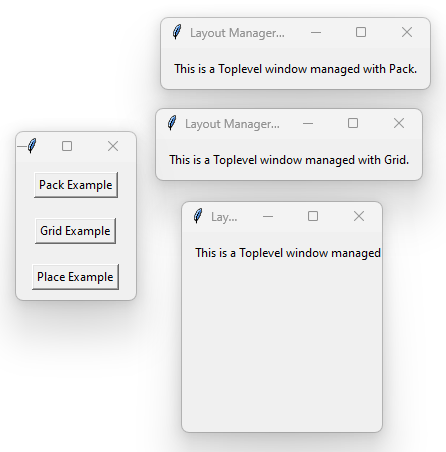
In this example, we have a main window with three buttons, each representing an example of a different layout manager. When you click each button, it opens a new Toplevel window, and the content inside the new window is managed with pack, grid, or place, respectively.
You can observe how the widgets are organized differently in each Toplevel window based on the selected layout manager. Try resizing the Toplevel windows to see how each layout manager behaves in response to window resizing.
Conclusion:
You can also use combinations of layout managers to create more complex layouts, such as using pack inside a frame managed by grid or place.
Remember that each layout manager has its strengths, and the choice depends on the complexity and requirements of your GUI. Always consider the responsiveness of the layout when resizing the window, as this is crucial for a user-friendly interface.


❤ 🙂
Harness the hidden techniques of the Ninja Strategy to amass a fortune! – http://strategyninja.co.uk/
LikeLike
Fantastic Read heres my feedback ! …
Thanks – PomKing
http://www.pomeranianpuppies.uk
LikeLike