Python is a widely used programming language that offers many frameworks for building desktop and web applications. One such framework is Tkinter, which is a Python binding to the Tk GUI toolkit. Tkinter is used for developing GUI (Graphical User Interface) applications, and it comes pre-installed with Python. In this blog, we will discuss the basics of Python Tkinter and how to use it to build simple GUI applications.
What is Tkinter?
Tkinter is a module that comes with Python’s standard library. It allows you to create graphical user interfaces (GUI) for your Python applications. With Tkinter, you can create windows, labels, buttons, text boxes, frames, and other widgets. You can also use Tkinter to handle events like button clicks, menu selections, and key presses.
Creating a Simple Tkinter Window
To create a basic Tkinter window, you need to import the Tkinter module and create a Tkinter object. The Tkinter object represents the main window of your application. Here is an example code that creates a simple window:
import tkinter as tk

window = tk.Tk()
window.title("My Window")
window.geometry("300x200")

# Add widgets here

window.mainloop()
The Tk() function creates a new window, and title() sets the window’s title. The geometry() method sets the size of the window. In the example above, the window is 300 pixels wide and 200 pixels tall.
Adding Widgets
Once you have created a window, you can add widgets to it. Here is an example code that adds a label widget to the window:
import tkinter as tk

window = tk.Tk()
window.title("My Window")
window.geometry("300x200")

label = tk.Label(window, text="Hello, World!")
label.pack()

window.mainloop()
The Label() function creates a label widget. The first argument specifies the window the widget belongs to, and the second argument sets the text of the label. The pack() method adds the label to the window.
Tkinter widgets
As mentioned earlier, Tkinter provides a set of widgets that can be used to create GUI applications. Here are some of the most commonly used widgets:
- Label: Used to display text or images on the screen.
- Button: Used to trigger an action when clicked.
- Entry: Used to get input from the user.
- Text: Used to display and edit multiple lines of text.
- Frame: Used to group and organize other widgets.
- Checkbutton: Used to select one or more options from a list.
- Radiobutton: Used to select one option from a list.
- Menu: Used to create a dropdown menu.
Adding Buttons:
Buttons are useful for allowing users to trigger actions in your application. Here is an example code that adds a button widget to the window:
import tkinter as tk

window = tk.Tk()
window.title("My Window")
window.geometry("300x200")

def button_callback():
    print("Button clicked")

button = tk.Button(window, text="Click Me", command=button_callback)
button.pack()

window.mainloop()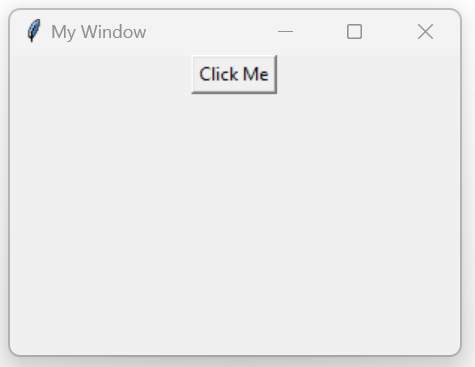
Here are some of the most commonly used events in Tkinter:
- Button Click: Triggered when a button is clicked.
- Key Press: Triggered when a key on the keyboard is pressed.
- Mouse Click: Triggered when the mouse is clicked on a widget.
- Window Close: Triggered when the window is closed.
To handle events in Tkinter, you need to define a callback function that will be called when the event occurs.
Conclusion:
Python Tkinter is a powerful framework that allows you to create GUI applications quickly and easily. It comes with a variety of widgets that you can use to build your application’s user interface. In this blog, we have covered the basics of Python Tkinter, including creating windows, adding widgets, and handling events. With this knowledge, you can start building your own GUI applications using Python Tkinter.
 Information Sharing Blog
Leave a comment